Account alerts
Google Account Compromised Text Scam (2026): Don't Tap the Alert
Google account compromised text or Gmail locked SMS? Don't tap. Verify at myaccount.google.com, check devices and forwarding — and what to do if you already clicked.
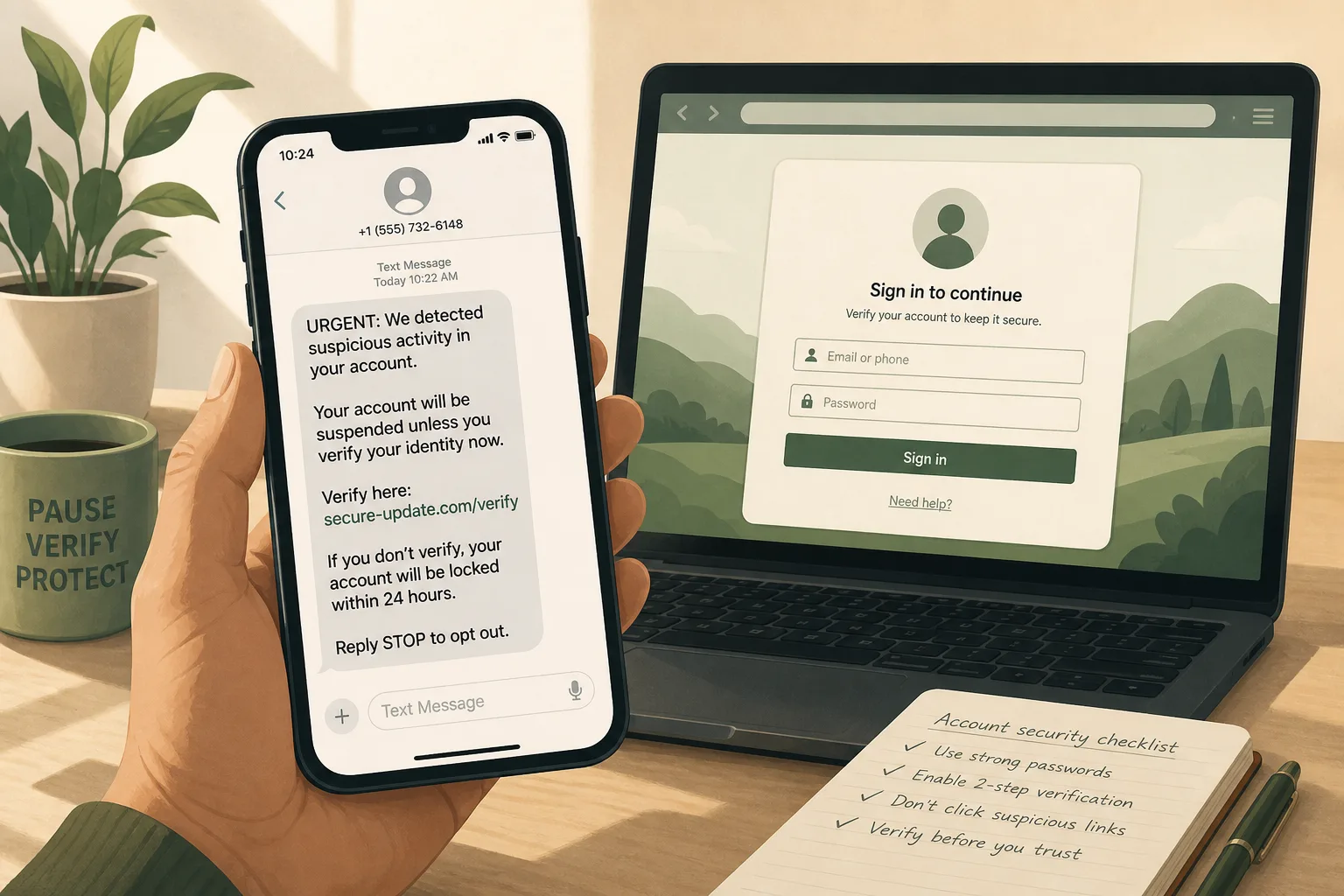
Short answer: A Google account compromised text scam — or “Gmail locked” / “unusual sign-in” SMS — is almost always fake. Do not tap the link. Open myaccount.google.com yourself, sign in normally, and check Security and recent activity (plus Gmail forwarding filters if something feels off). Same rule for a Google scam email: verify inside Google, never through the message.
Quick FAQ (what people search)
Is a Google account compromised text real?
Usually no. Real Google security problems are checked inside your account — not by tapping a surprise SMS link.
How do I check if my Google account is actually compromised?
Type myaccount.google.com yourself → Security → recent activity / devices. Also check Gmail settings → Forwarding and filters for rules you did not add.
What a Google account compromised text scam wants
Fake “Google compromised” / “Gmail locked” messages are usually smishing (SMS phishing) or email phishing. The attacker wants:
- Your Google password
- A one-time code / 2FA prompt approval
- Enough access to change your recovery email and phone
- Control of Gmail so they can reset other accounts that use that inbox
- Sometimes remote-access software if the text pushes you to “call Google support”
Google Account takeover is valuable because it is rarely “just email.” It can unlock Drive files, YouTube, Photos, Android backups, saved passwords in Chrome, business Workspace access, and the reset path for banking and shopping accounts.
Best real-world example (how the attack feels in real time)
This composite matches patterns widely reported in 2026: fake unrecognized-device texts, “Recover Account” links, and lookalike Google login pages.
Minute 0 — The bait
You receive an SMS that appears to come from “Gmail,” “Google,” or a short code. It claims:
- unrecognized login
- account locked for suspicious activity
- password changed
- recovery phone updated
- “secure your account now” / “recover account”
The wording copies the calm, corporate tone of real alerts. Some versions mention a city, device, or browser to feel specific.
Minute 1 — The rush
You imagine someone reading your mail, draining linked payments, or locking you out. Urgency short-circuits careful thinking.
Minute 2 — The fake page
The link opens a page that looks like Google sign-in. The logo styling may be close. The URL is wrong — extra words, odd domains, misspellings, or long subdomains. You enter your email and password. If 2FA is on, the page may ask for the code too, or a caller may coach you to “approve the prompt.”
Minutes 3–30 — The takeover moves
With a fresh password (and sometimes a code), attackers often:
- Sign in from their device
- Add their recovery phone or email
- Remove yours
- Turn on forwarding or filters so you stop seeing warning mail
- Start password resets on banks, PayPal, Apple, crypto, social apps using your inbox
Hours later — Cascade
Friends get weird emails. You cannot sign in. A bank OTP never arrives because the recovery phone changed. That is why speed in the first day matters.
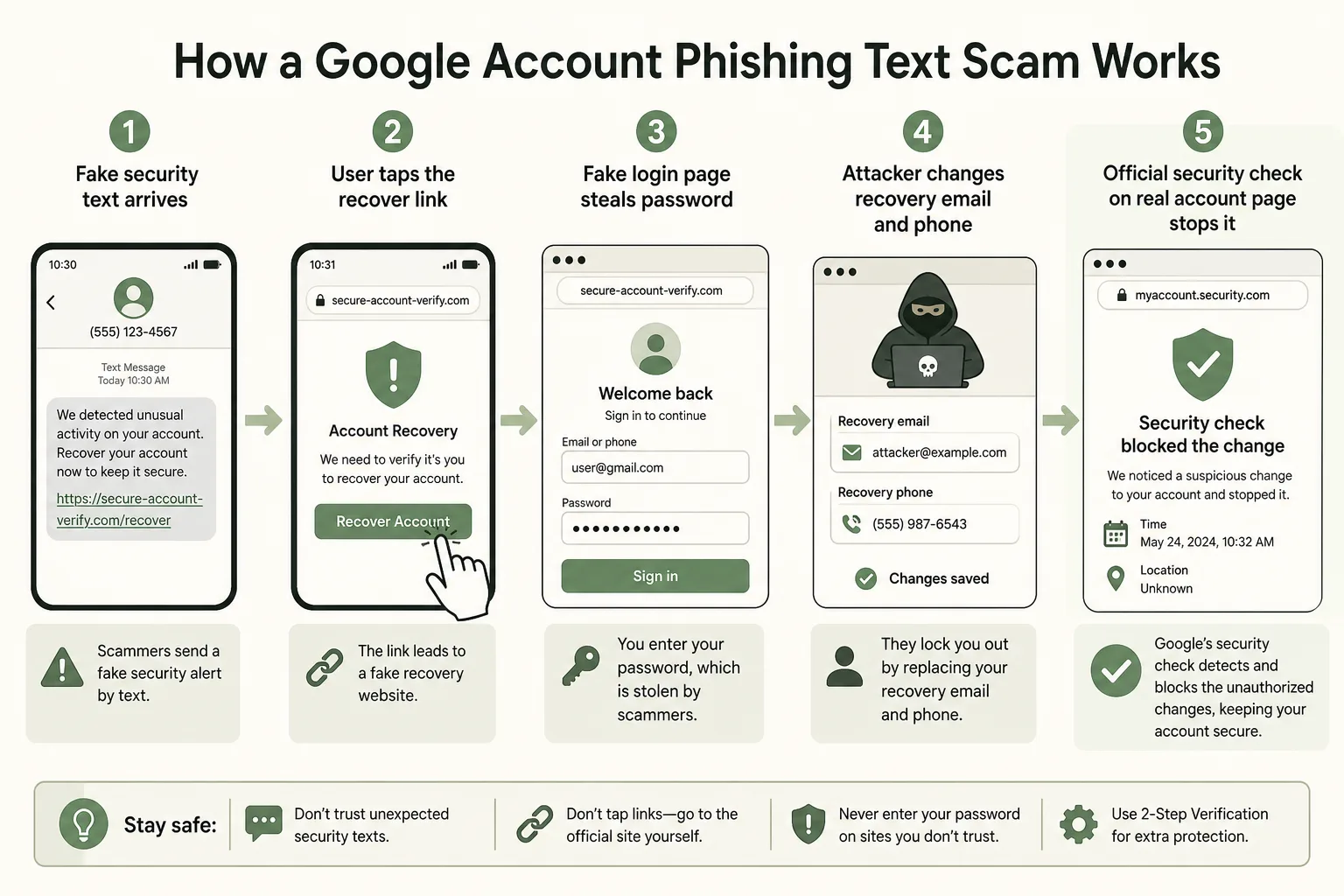
How the scam works step-by-step
- Unexpected alert — Text, email, or call claims Google/Gmail is compromised or locked.
- Fear hook — “Unrecognized device,” “Frankfurt login,” “account will be deleted,” “call support now.”
- Action bait — Link, QR code, or phone number in the message.
- Credential capture — Fake login page or social-engineering call collects password / OTP / app approval.
- Account hardening by the attacker — They change recovery options and sessions so you struggle to get back in.
- Downstream fraud — Inbox used to reset other services, send scams, or steal stored data.
Related variants:
- Email that says “new sign-in” with a Secure Account button to a fake domain
- Text that says call a “Google security team” number (often leads to remote-access tech-support fraud)
- Message that only asks you to reply YES (confirms a live number, then a follow-up phishing link arrives)
Manual ways to check if the text is fake (before you panic)
Use these every time. No special tools required.
1. Do not use the message’s link or phone number
Close the text. Do not tap. Do not call the number inside it. Do not reply STOP to “confirm” anything with a scammer channel if you can report junk instead.
2. Open Google the trusted way
On your phone or computer:
- Open the Gmail app you already use, or
- Open a browser and type
myaccount.google.comyourself, or - Use a bookmark you created earlier
Sign in only on that trusted path.
3. Ask the “would Google do this?” questions
- Does this text demand immediate tapping"
- Does it include a raw link or “call us” number"
- Did it arrive when you were not doing anything with Google"
Real issues can still be checked calmly inside your account. Panic links are a scam signature.
4. Compare with what Google already shows you
If you are signed in and Google has a real security concern, you can usually review it under Security activity without needing an SMS stranger’s URL.
5. Household rule
Tell family: “Google security texts with links are guilty until proven innocent. We only check inside the Google app or myaccount.google.com.”
Technical ways to check if your Google account is actually compromised
These checks answer the real question: Was there a takeover — or only a fake warning?
Do them on a device you trust. If you already typed a password on a fake page, use another device when possible, or clean up after (covered in the 24-hour plan).
Check A — Recent security activity
- Go to Google Account → Security (
myaccount.google.com/security). - Open Recent security activity / security events.
- Look for sign-ins, password changes, recovery changes, or 2-Step Verification changes you do not recognize.
- Mark unfamiliar events and follow Google’s secure-account prompts.
If activity looks normal and only your devices appear, the scary text was likely bait.
Check B — Your devices
Review Your devices (devices with account access):
- Unknown phones, laptops, or browsers
- Locations that make no sense
- Sessions you do not remember
Remove anything strange.
Check C — Recovery phone and recovery email
Attackers love these because they control future resets.
Confirm:
- Recovery phone is still yours
- Recovery email is still yours
- No extra methods you did not add
If either changed and you did not do it, treat the account as compromised now.
Check D — 2-Step Verification status
Check whether 2SV is on, and which methods exist:
- SMS codes
- Authenticator app
- Security keys
- Google prompts on your phone
Unknown methods = hostile access path. Remove them after you regain control.
Check E — Gmail forwarding, filters, and delegates
In Gmail settings, inspect:
- Forwarding addresses you did not add
- Filters that auto-delete or auto-forward mail (especially from banks, Google, or “security”)
- Delegates who can read your mail
- Unexpected IMAP/POP or third-party app access
Silent forwarding is how people “secure” the account on the surface while attackers keep reading resets in the background.
Check F — Sent mail and missing mail
Signs of abuse:
- Sent messages you did not write
- Friends reporting spam from you
- Important mail missing from inbox and trash
- Sudden stop of bank or Google alerts
Check G — Connected apps and Google permissions
Review third-party apps with account access. Revoke anything unknown. Attackers sometimes leave persistent app access even after a password change if you do not clean permissions.
Check H — Password manager / Chrome saved passwords (if used)
If the attacker had full Google/Chrome sync access, assume saved passwords may be exposed. Plan resets for high-value sites (email, banks, Apple ID, social, crypto).
Quick verdict table
| What you find | Likely meaning | What to do |
|---|---|---|
| No odd security events; devices look normal | Text was probably fake | Report junk; do not tap; optional password refresh if you are nervous |
| Unknown login, but recovery still yours | Possible probe or brief access | Change password; review devices; turn on stronger 2FA |
| Recovery phone/email changed | High-confidence compromise | Full 24-hour recovery plan immediately |
| Forwarding/filters you did not create | Active abuse | Remove them; password + 2FA; check Sent mail; warn contacts |
| You typed password on the text’s page | Assume compromise | Start 24-hour plan even if you “cancelled” mid-way |
First 24 hours if a scammer got any details
Use this when any of the following is true:
- You entered your Google password on a page from a text/email
- You shared an OTP or approved a Google prompt for a stranger
- Recovery options changed
- You are locked out or see clear hostile activity
Move in order. Speed matters more than perfect notes.
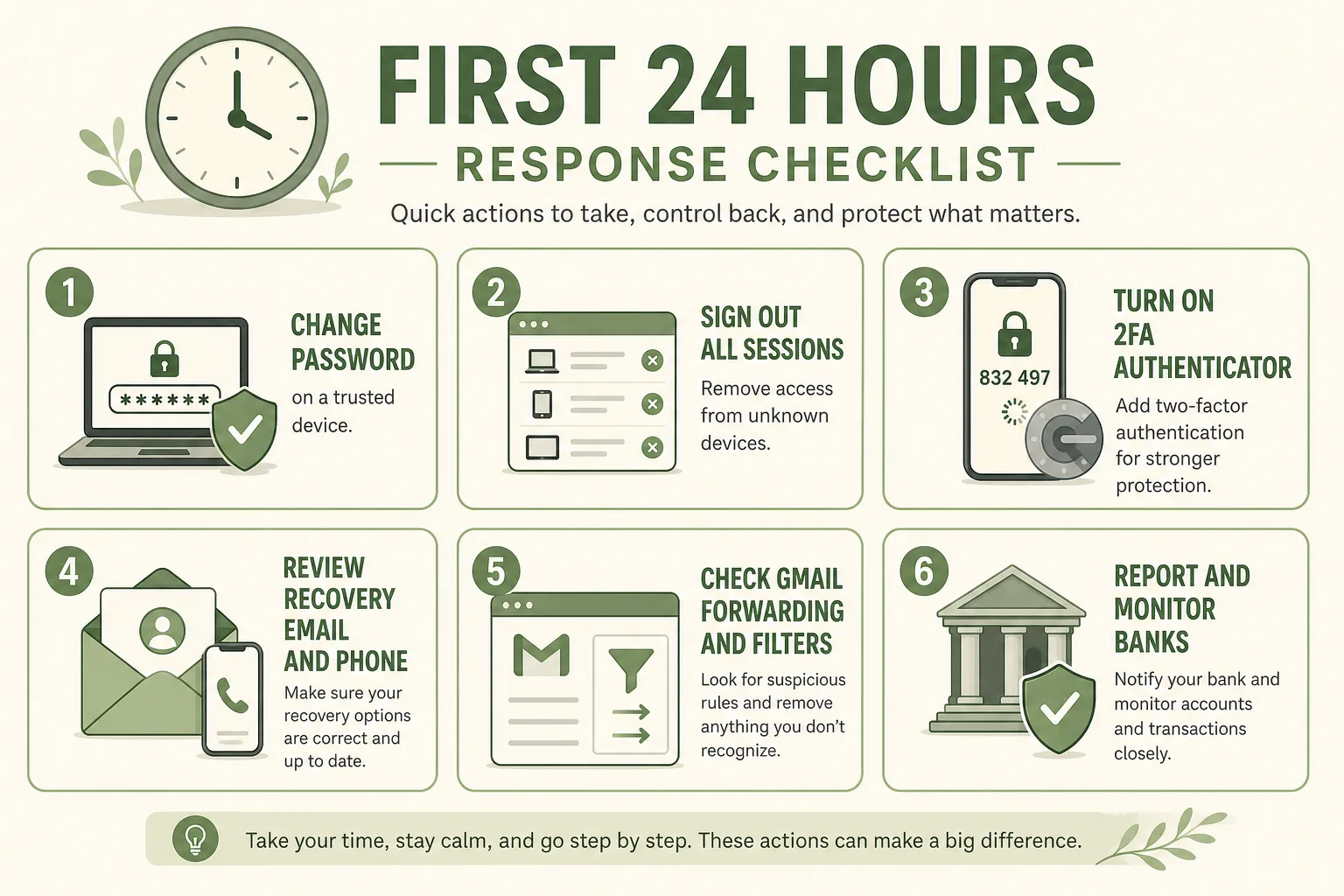
Hour 0–1: Stop the bleeding
- Stop using the fake page. Close it. Do not retry the link “to check.”
- Get back into Google through a trusted path (
myaccount.google.comor official apps). If locked out, use Google’s official account recovery flow you navigate to yourself — not a text link. - Change your Google password immediately to a long, unique password you have never used elsewhere.
- Sign out of other sessions / remove unknown devices so stolen sessions die.
- Turn on 2-Step Verification if it is off. Prefer an authenticator app or security key over SMS alone when you can.
- Fix recovery phone and recovery email back to yours. Remove attacker methods.
Hour 1–3: Clean the inbox attack surface
- Remove mail forwarding you did not set.
- Delete hostile filters, labels rules, and delegates.
- Revoke unknown third-party app access.
- Check Sent and Trash for attacker activity; save screenshots for reports if needed.
- Scan for mailbox rules that hide security alerts.
Hour 3–8: Protect everything that depended on Gmail
Your Google inbox is often the reset channel for life admin. Prioritize:
- Banks and cards — call numbers on the back of cards; enable alerts; watch for resets or transfers.
- PayPal / payment apps / crypto exchanges — change passwords; review devices; freeze if unsure. If the next bait is a PayPal “unauthorized payment” SMS, use PayPal scam text.
- Apple ID / Microsoft / social accounts that use this Gmail for recovery.
- Work or school accounts if the same inbox is a recovery address — tell IT if relevant.
- Anywhere you reused the same password as Google — change those too. A password manager helps here; see Password Manager Guide for Beginners.
If you shared an OTP or approved a prompt, also read OTP Scams Explained and What Is Two-Factor Authentication".
Hour 8–24: Harden and report
- Prefer authenticator app or security key for Google 2SV; keep backup codes offline in a safe place.
- Review Google security checkup end to end again.
- Update the phone OS / browser; remove unknown apps if a “support” call asked for installs (AnyDesk-style remote tools are a common follow-on). Related patterns appear in Fake Tech Support Scams.
- Report the text as junk; in the U.S. forward to 7726 where supported.
- Report phishing inside Gmail for phishing emails.
- Tell close contacts not to trust odd messages from your address for a few days.
- Monitor for 48–72 hours: new device prompts, recovery changes, bank SMS, and “password reset” emails you did not start.
- If money moved or identity documents were exposed, use consumer fraud reporting (for example ReportFraud.ftc.gov in the U.S., and local cybercrime channels where you live).
If you cannot get back into the account
- Use Google’s official Account Recovery only from Google’s real site/app flows
- Try devices and locations you used before
- Use the correct recovery phone/email if still yours
- Do not pay a “Google unlock specialist” on Telegram/WhatsApp — those are secondary scams
- Document dates, screenshots, and the original phishing text for support and police reports if needed
Common mistakes that help the scammer win
- Tapping the text “just to see”
- Calling the number in the alert
- Approving a Google prompt while someone is on the phone with you
- Changing the password but leaving their recovery phone in place
- Ignoring Gmail forwarding
- Reusing the Google password on banking sites
- Installing remote-support apps from a “Google technician”
- Waiting overnight “to deal with it tomorrow” after entering a password
Tomorrow is when attackers finish the cascade.
Red flags in the message itself
Watch for:
- Unexpected SMS about Google/Gmail security
- “Recover” / “Secure now” links
- Phone numbers to call inside the text
- Spelling issues or awkward urgency
- Claims your account will be deleted in minutes
- Links that do not clearly belong on Google’s real domains once previewed
- Requests for passwords or codes by reply SMS
How real Google security communication usually differs
Exact product behavior can change, but consumer-safe habits stay stable:
- You can review security events inside Google Account without trusting a cold SMS link
- You should not give passwords to callers
- You should not approve login prompts for strangers
- Official help starts from Google’s own apps/sites you open yourself
If something feels wrong, the secure move is always: open Google yourself, then look.
For general phishing pattern recognition, see How to Spot Phishing Emails. After a suspicious page load, use How to Tell If a Website Is Safe. If SIM-swap risk is part of your picture (recovery SMS stolen), read SIM Swap Attacks.
Quick answers
FAQ
8 questions
Google can use verification texts and some notifications in account flows you initiated. An out of the blue “your account is compromised — tap this link” message is still something you verify inside the account, never through the message link.
Trusted sources
- Google Account security
- Secure a compromised Google Account
- Turn on 2-Step Verification
- Report fraud to the FTC
Key takeaways
- Fake Google/Gmail “compromised account” texts are a high-impact phishing pattern in 2026.
- Verify only through
myaccount.google.comor official apps you open yourself. - Technical compromise checks: security activity, devices, recovery contacts, 2SV methods, forwarding/filters, Sent mail, app access.
- If any details leaked, the first 24 hours are about password, session kill, recovery repair, 2FA, Gmail cleanup, then downstream account resets.
- Authenticator-based 2FA and unique passwords sharply reduce repeat damage.
- Teach one household line: never tap Google security links in texts.
Was this guide helpful?
Tap like or dislike — one vote per visitor.
Comments
Share a tip or question. Keep it practical — no spam, links farm, or personal data dumps.
- Loading comments…