Account alerts
Password Manager for Beginners (2026): Setup Guide & Why You Need One
Best beginner password manager habits: stop reusing passwords, set up a vault safely, enable 2FA, and migrate email/banking logins first — step-by-step.
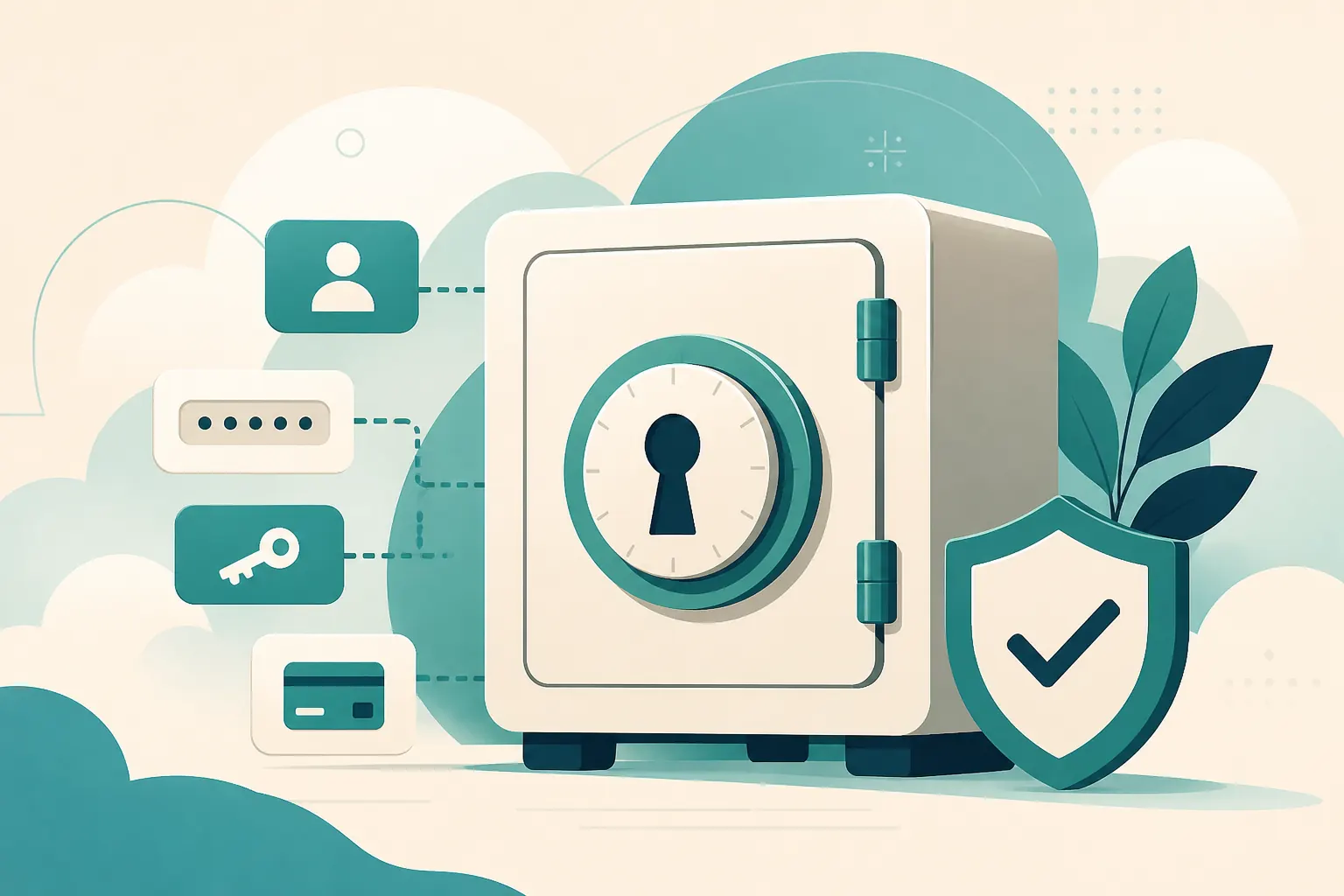
Short answer: A password manager for beginners is an encrypted vault that stores unique passwords so you stop reusing one phrase everywhere. You remember one strong master password (plus 2FA on the vault). Everything else can be long and random — which blocks the “one leak unlocks your email” chain.
If you reuse passwords, one breach can unlock many accounts. That is the quiet risk behind so many “how did they get into my email?” stories. Pair this with two factor authentication on email and banking after the vault is set up.
You do not need to become a cybersecurity expert to benefit. You need one vault, one strong master password, and a short plan for migrating the accounts that matter most.
What a password manager does
- Stores passwords in an encrypted vault
- Generates strong random passwords
- Autofills on real sites (with caution)
- Syncs across your devices when configured
You remember one strong master password (and ideally use 2FA on the vault). Everything else can be long, ugly, and unique — which is exactly what you want.
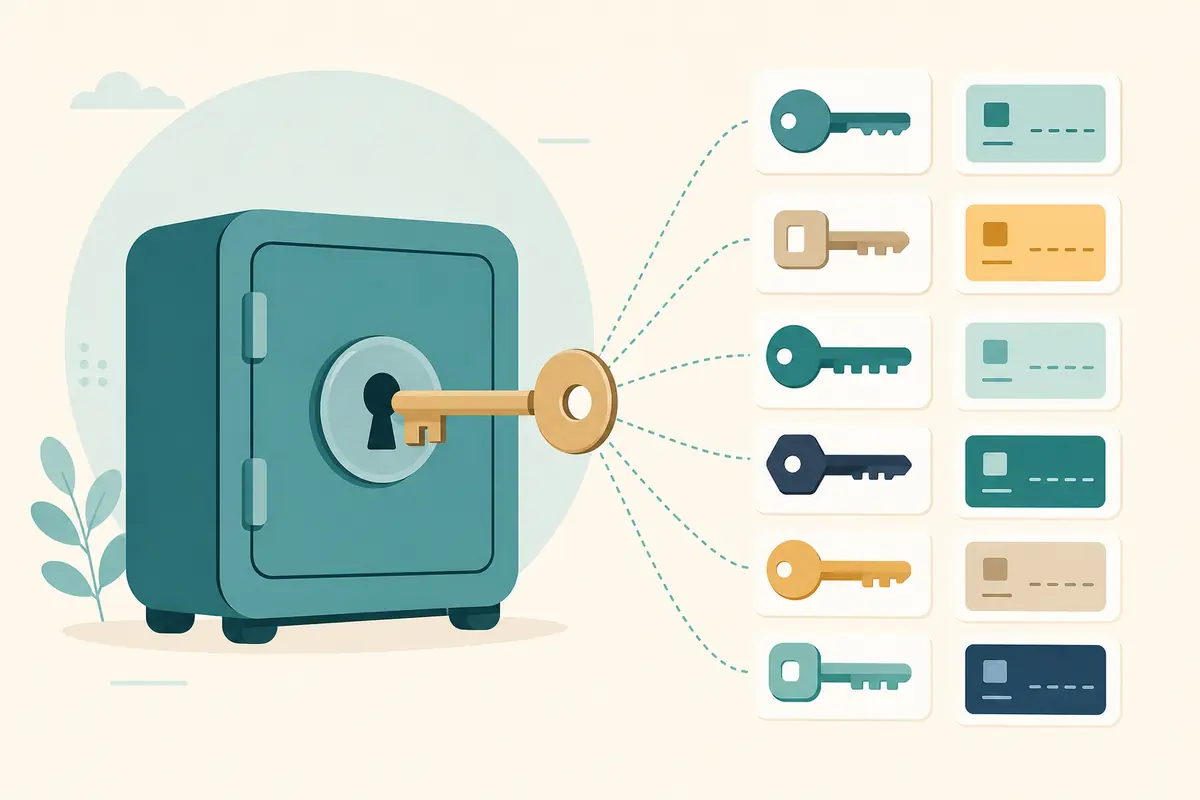
Think of the manager as a locked notebook that can also invent better passwords than a human will tolerate typing from memory. Sticky notes, reused phrases, and “one good password with a different number at the end” all fail for the same reason: attackers and leaked databases are patient, and patterns are easy to try at scale.
How password managers work (without the jargon spiral)
Encryption and your master password
A reputable password manager encrypts your vault so that the usable secrets are protected by a key derived from your master password (and related security design choices of the product). In plain terms: the whole point is that unlocking should require something only you should know or control. That is why the master password must be long, unique, and never reused on websites.
Generators beat human creativity
People invent passwords that feel random and still follow patterns: keyboard walks, pet names, seasons, years, and leetspeak. Generators create long random strings that are boring on purpose. Boring is good. Attackers prefer predictable.
Autofill is convenience with a side of judgment
Autofill saves time and reduces phishing success when it refuses to fill on the wrong domain. You still need to glance at the URL. A lookalike site (micros0ft-login.example style tricks, or subtle misspellings) is still a social engineering problem, not a vault problem.
Sync is useful — and worth configuring carefully
Syncing across phone and laptop is one of the main reasons managers beat a notebook in a drawer. Use official apps, keep devices updated, and protect phone unlock with a strong method. A synced vault on an unlocked phone is still a physical-access risk.
Why beginners should care more about email than about that one shopping site
Your email account is often the reset button for everything else. If an attacker gets email, they can request password resets across shopping, social, cloud storage, and sometimes banking recovery flows. That is why password-manager guides for beginners sound repetitive about email: it is the hub.
Banking and primary cloud accounts sit in the same “fix these early” bucket. Forums, old games, and throwaway signups can wait in line — but they should still get unique passwords eventually, because those are often the first places credentials leak.
Setup steps for beginners
- Choose a reputable password manager
- Create a long master password you have never used elsewhere
- Turn on 2FA for the password manager account
- Import or save new passwords as you log in
- Change reused passwords on email and banking first
- Install the official browser extension or mobile app only from trusted sources
- Store recovery details offline where the product provides an emergency kit or backup codes
- Practice locking and unlocking the vault so the habit feels normal
You do not have to migrate one hundred logins on day one. A realistic beginner plan is: set up the vault, secure the vault, fix email, fix money-related accounts, then change passwords as you encounter reused ones during normal browsing.
Common mistakes with password managers
Reusing the master password somewhere else
If your master password is also your email password, or an old favorite from years of reuse, you have rebuilt the cascade problem at the worst possible layer.
Skipping 2FA on the vault
Password managers are high-value targets. A strong master password is necessary; adding authenticator-app or security-key 2FA (whatever the product supports well) makes account takeover harder if your email or session tokens are also under pressure.
Trusting every autofill prompt blindly
If a site looks wrong, do not let convenience win. Navigate from a bookmark you created, or type the known address carefully, then fill.
Saving one shared family password for “everyone’s Netflix and also the bank”
Shared household logins for entertainment can be a deliberate exception with eyes open. Banking, email, and government portals should not be casual shared entries without a clear, careful policy.
Never testing recovery until you are locked out
Read how your chosen product handles master-password loss during setup. Some designs cannot reset a forgotten master password by design. That is a safety feature and a responsibility at the same time.
Step-by-step: migrating from sticky notes and reuse
Step 1 — Inventory the accounts that can ruin your week
List email, banking, primary shopping, cloud storage, social accounts used for login elsewhere, and work-related portals if personal devices are involved. This is your priority queue.
Step 2 — Create the vault before you start mass password changes
Install the manager, create the master password, enable 2FA, and confirm you can log in on your main devices. Then begin changing passwords.
Step 3 — Change and save as you go
On each priority site, use the generator, save the new password in the vault, and confirm login works on a second device if you use one. Remove the old password from browsers or notes once the vault copy works.
Step 4 — Clean up browser-only storage over time
Browser password saving is better than reuse, but a dedicated manager usually gives stronger generation, clearer vault controls, and better cross-device habits. Move important entries deliberately instead of assuming the browser list is “done.”
Step 5 — Build the everyday habit
When you create a new account, generate first, save first, then register. That single habit prevents the next year of reuse.
Good habits that matter
- Do not reuse the master password anywhere
- Avoid saving passwords only in your browser if you can use a dedicated manager
- Watch for autofill on lookalike domains
- Keep a secure emergency recovery method
- Update the password manager app like any other security tool
- Use unique passwords even for “unimportant” sites that share your email address
- Prefer authenticator 2FA or security keys on email and banking, not SMS alone when you have a choice
What to do if you think passwords were already stolen
If a site you used announces a breach, or you see unfamiliar logins:
- Open your password manager and change that site’s password immediately to a new generated one
- If you reused that password anywhere else, change those accounts too — this is the cascade you are trying to stop
- Secure email first if there is any chance it was exposed
- Check active sessions and sign out unknown devices where sites offer that control
- Enable or refresh 2FA on important accounts
- Watch for password-reset emails you did not request
If someone contacted you claiming to be support and asked for your master password, treat that as a scam attempt. Password manager companies do not need you to paste your master password into a chat window to “verify” you.
Quick answers
FAQ
7 questions
Recovery depends on the product. Set recovery options carefully during setup and store emergency info offline if provided. Some managers cannot reset a forgotten master password by design — which protects your vault from account recovery social engineering, but means you must treat the master password like a house key you cannot replace casually.
Trusted sources
- CISA: Secure our World — use strong passwords
- FTC: protect your personal information
- CISA: multi-factor authentication
- Report fraud to the FTC
Key takeaways
A password manager is less about “remembering secrets” and more about ending password reuse. Set up a reputable vault, protect it with a unique master password and 2FA, then migrate email and financial accounts first. Generate long unique passwords, treat autofill as a helper rather than an autopilot, and keep recovery options documented offline. If a reused password may already be exposed, change every place you used it — starting with email. For beginners, the win is simple: one breach should not become five account takeovers.
Was this guide helpful?
Tap like or dislike — one vote per visitor.
Comments
Share a tip or question. Keep it practical — no spam, links farm, or personal data dumps.
- Loading comments…