Account alerts
Two Factor Authentication (2FA): What It Is & How to Set It Up (2026)
Two factor authentication (2FA) explained simply: how 2FA works, 2FA vs MFA, authenticator apps vs SMS, passkeys, backup codes, and how to turn it on safely.
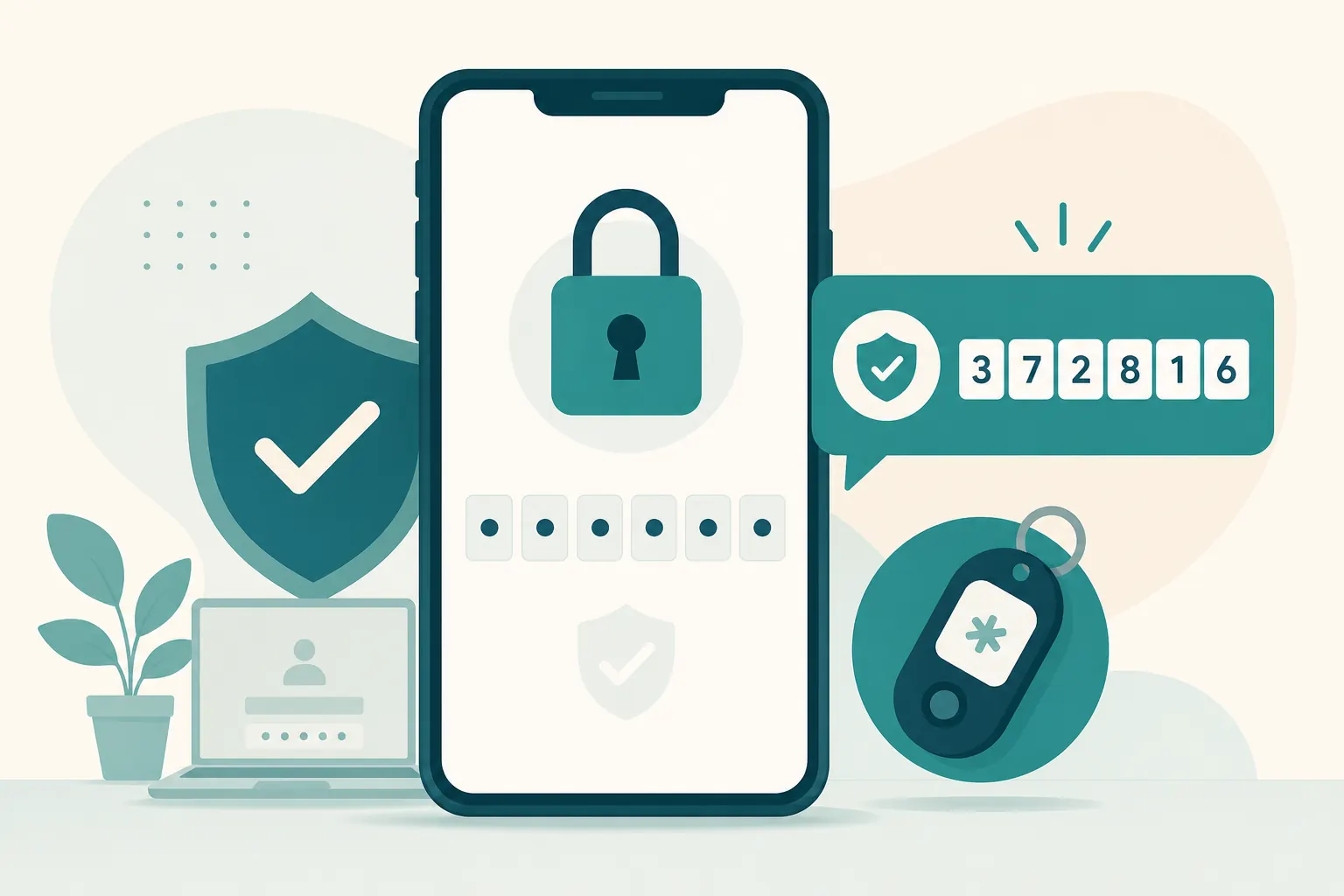
Short answer: Two factor authentication (also written two-factor authentication or 2FA) is a login method that asks for two different proofs before granting access — usually your password plus a code from an authenticator app, a phone prompt, or a security key. People also search 2 factor authentication and 2FA authentication for the same idea.
If attackers steal only your password, 2FA is the wall that often stops a quiet account takeover. That is why email providers, banks, and security agencies treat multi-factor protection as a baseline habit — not an optional “extra for experts.”
What is two factor authentication?
Two factor authentication means your account needs two different proofs before it opens — not just a password. That is the whole idea behind 2FA, 2 factor authentication, and most “two-step verification” labels you see in Google, Apple, Microsoft, and bank apps.
The short version (if you only need the definition)
Two-factor authentication means:
- You prove factor one (almost always a password or PIN).
- You prove factor two from a different category (phone app, hardware key, biometric, etc.).
- Only then does the service let you in.
A password plus a security question is not true 2FA. Both are “something you know.” Real 2FA mixes categories.
Authentication factors explained (what top guides all cover)
Security writing usually groups proofs into three buckets:
| Factor type | Plain meaning | Everyday examples |
|---|---|---|
| Knowledge | Something you know | Password, PIN |
| Possession | Something you have | Phone with authenticator app, SMS handset, hardware security key, smart card |
| Inherence | Something you are | Fingerprint, face unlock (often used with device passkeys) |
True 2FA uses two of those categories. That is the same core definition used across major explainers from security vendors and standards-focused sites.
2FA vs MFA vs two-step verification
People use these labels interchangeably. Close enough for daily life — precise enough for better choices:
- 2FA (two-factor authentication): exactly two factors from different categories.
- MFA (multi-factor authentication): two or more factors. All 2FA is MFA; not all MFA stops at two.
- Two-step verification: product wording (Google, many consumer apps). Functionally it usually means password + second check. Some “two-step” flows are still two knowledge steps; prefer methods that include a possession factor.
You do not need perfect jargon. You need important accounts protected with a second factor that is harder to steal than a reused password.
How two-factor authentication works (step-by-step)
A typical 2FA login looks like this:
- You open the official site or app (bookmark or typed address — not a random email link).
- You enter username + password (factor one).
- The service challenges you for factor two:
- a 6-digit authenticator code,
- an SMS/email one-time code,
- a push approve/deny prompt,
- a hardware key tap,
- or a passkey/biometric prompt on a trusted device.
- After both succeed, you get a session.
Behind the scenes, authenticator apps usually use TOTP (time-based one-time passwords): your phone and the server share a secret from setup, then both compute short-lived codes. SMS codes are generated by the service and delivered over the phone network — convenient, but exposed to different risks (more below).
Types of 2FA (and which are stronger)
Authenticator apps (TOTP) — recommended for most people
Apps generate rotating codes on your device. They work offline and are not delivered through SMS.
Pros: stronger than SMS against SIM-swap; widely supported; free options exist.
Cons: still phishable if you type a live code into a fake site; phone loss hurts if you skipped backup codes.
SMS / text codes — better than nothing, weaker than apps
The service texts a one-time code.
Pros: easy; good first upgrade from password-only.
Cons: SIM-swap attacks and social-engineering against phone numbers; codes can be intercepted or redirected in some attacks. Prefer upgrading high-value accounts to authenticator/passkey when available.
Email one-time codes
Useful as a backup channel — risky as your only second factor if that same email is weakly protected.
Push notifications (“Approve this login?”)
Convenient. Dangerous when people tap Approve out of habit.
Rule: if you did not just try to sign in, tap No/Deny, change your password from a trusted device, and review sessions.
Hardware security keys
Physical keys (USB/NFC) you tap. Among the strongest consumer options when the site supports them — especially phishing-resistant designs.
Passkeys (where supported)
Passkeys can replace passwords with device-bound credentials tied to the real website domain. On supporting services they are one of the best upgrades against fake login pages. Keep recovery options documented when you enroll.
Biometrics
Fingerprints/face unlock often unlock a local device credential (including passkeys). They are powerful when paired correctly with the device — not a reason to skip backup planning.
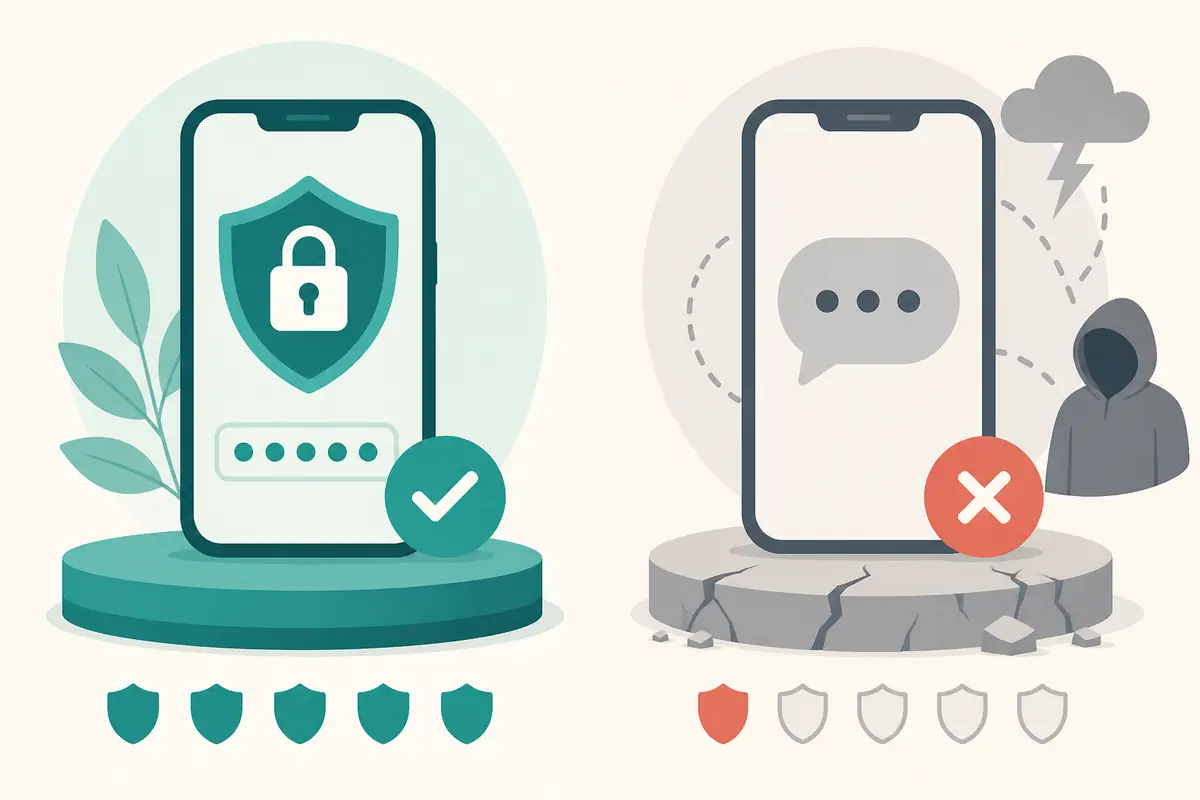
What 2FA protects you from (and what it does not)
Strong against
- Credential stuffing (attackers trying leaked password lists)
- Many “password only” takeovers after breaches
- Casual guessing and reused-password attacks
- Some account-reset abuse when recovery is also hardened
Not a magic shield against
- You typing a password and a live OTP into a phishing page (phishing email patterns)
- OTP scams where a caller tricks you into reading a code
- Malware on your device that steals sessions
- Approving push prompts you did not start
- Weak recovery email/phone that attackers rewrite after a partial compromise
Think of 2FA as a seatbelt: essential, not a substitute for safe driving.
Myth → truth (common Google questions)
Myth: “2FA means I can reuse easy passwords.”
Truth: Unique passwords still matter. 2FA reduces damage when a password leaks; it does not make weak passwords wise.
Myth: “SMS 2FA is as good as an authenticator app.”
Truth: SMS is a solid upgrade from nothing, but authenticator apps / passkeys / keys are stronger for important accounts.
Myth: “If I enable 2FA once, I’m done forever.”
Truth: Review recovery options when you change phones, remove old numbers, and keep backup codes reachable.
Myth: “Backup codes are optional.”
Truth: Backup codes are how you avoid locking yourself out. Save them during setup — not after the phone dies.
Setup order that actually protects you
Turn protection on in risk order:
- Primary email (Gmail, Outlook, Apple ID email hub)
- Save backup codes offline or in a password manager
- Banking / payment apps
- Apple / Google / Microsoft identity accounts
- Cloud storage and password manager vault
- Social accounts that can reset friendships, reputation, or other logins
- Everything else worth protecting
Email is the reset hub. If attackers own email, they often reset everything downstream — including some 2FA recoveries.
Step-by-step: enable authenticator-based 2FA
Menus differ by brand, but the flow is usually:
- Sign in on the official website/app (bookmark or typed URL).
- Open Security / Account settings.
- Find 2-Step Verification, Two-factor authentication, or MFA.
- Choose Authenticator app when offered.
- Scan the QR code in your authenticator.
- Enter the first code to confirm.
- Download/print backup codes immediately.
- Store codes where you can reach them without that phone.
- Sign out and sign back in once as a test.
- Optionally add a second method (another key, passkey, or spare codes).
Never enroll 2FA from a link inside a scary “verify now” text. Open the real app yourself. Fake Google account alert texts often try to rush this moment.
How to avoid locking yourself out
Lockouts are why some people disable 2FA after one bad weekend. Prevent that:
- Save backup codes during enrollment
- Add a second factor when the account allows it
- Keep recovery email/phone current on major accounts
- Use official authenticator transfer/export before wiping a phone
- Do not store the only copy of backup codes inside the same account they protect
- Do not remove 2FA “temporarily” on a shared computer and forget to restore it
Changing phones without losing access
Before you factory-reset an old phone:
- Confirm backup codes still work
- Transfer authenticator data with the app’s official export/cloud backup or re-enroll each important account on the new phone
- Remove old device sessions afterward
- Test login on the new phone first
Rushing a phone upgrade is a classic self-lockout story.
Real-world attacks that still try to beat 2FA
Understanding these makes 2FA advice practical — not theoretical.
Phishing for the second factor
A lookalike login page asks for password + current authenticator code in real time. Defense: type addresses yourself; be suspicious of urgent email/SMS links; prefer passkeys/hardware keys where supported.
OTP / “read me the code” social engineering
A caller pretends to be support/bank and asks for the code that just arrived. Defense: never share codes with people who contacted you first — see OTP scams explained.
SIM swap against SMS 2FA
Attackers hijack your number and intercept texts. Defense: move critical accounts off SMS when possible; read SIM swap attacks.
Push bombing / MFA fatigue
Dozens of approve prompts until someone taps yes. Defense: deny unexpected prompts; change password; review devices.
What to do if you are locked out or already compromised
Locked out of your own account
Use official recovery: backup codes, secondary email, provider account-recovery forms. Avoid random “unlock agents” who message you first — those are often scams.
Attacker got past 2FA
- Sign in from a trusted device if you still can
- Change the password
- Revoke sessions, app passwords, unknown devices
- Rotate 2FA (remove old authenticators; enroll fresh)
- Check recovery email/phone for attacker edits
- Review forwarding rules, sent mail, connected apps
- Update other accounts that shared the old password
If money already moved because of a takeover, pair this with What to Do If You Already Paid a Scammer.
Quick comparison: pick a method
| Method | Relative strength | Best use |
|---|---|---|
| Password only | Weak | Avoid for important accounts |
| Password + SMS | Medium | Temporary upgrade; plan to improve |
| Password + authenticator app | Strong for most people | Default recommendation |
| Password + push (careful habits) | Strong if you never approve blind | Convenience with discipline |
| Password + hardware key | Very strong | High-value / high-risk accounts |
| Passkeys (supported sites) | Excellent phishing resistance | Enroll when available + keep recovery plan |
Quick answers
FAQ
9 questions
It is a second lock after your password — usually a code or device you control — so stolen passwords are harder to abuse.
Trusted sources
- CISA: multi-factor authentication
- Google Account: 2-Step Verification
- Microsoft: what is two-factor authentication
- CISA: Secure Our World
- FTC: protect your personal information
Key takeaways
- What is two-factor authentication? Password plus a second factor from a different category.
- Prefer authenticator apps, passkeys, or hardware keys over SMS for important accounts.
- Protect email first — it resets everything else.
- Save backup codes the same day you enroll.
- Never share 2FA codes with strangers who contact you first.
- 2FA blocks many takeovers; phishing and OTP tricks can still target humans — stay deliberate.
Was this guide helpful?
Tap like or dislike — one vote per visitor.
Comments
Share a tip or question. Keep it practical — no spam, links farm, or personal data dumps.
- Loading comments…