Account alerts
Phishing Email (2026): How to Spot Fake Logins Before You Click
How to spot a phishing email fast: check sender, links, and urgency. How to check an email for phishing — and what to do after opening a phishing email.
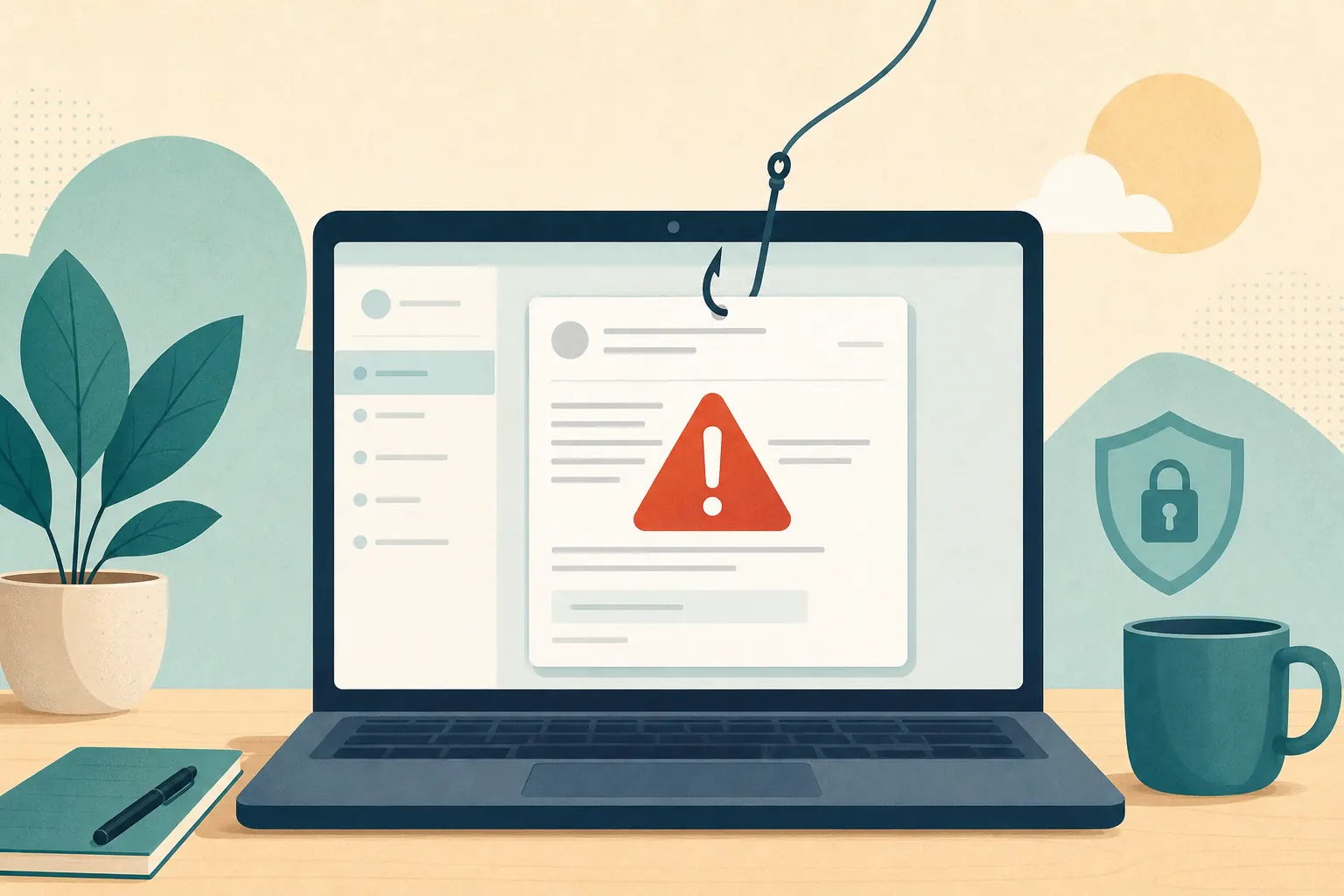
Short answer: How to spot phishing emails: if a message pushes you to “verify,” “unlock,” or “pay now,” pause. Check the full sender address, preview the real link destination, and finish the task only on the official site you open yourself. That is also how to check an email for phishing before you tap. If you already clicked, jump to the “already opened a phishing email” steps below.
Phishing emails still work because they feel urgent and familiar — bank, delivery, payroll, shared docs. Attackers do not need perfect English. They need you faster than your doubt. This guide covers how to spot a phishing email, common phishing email tricks, and what to do after a near miss.
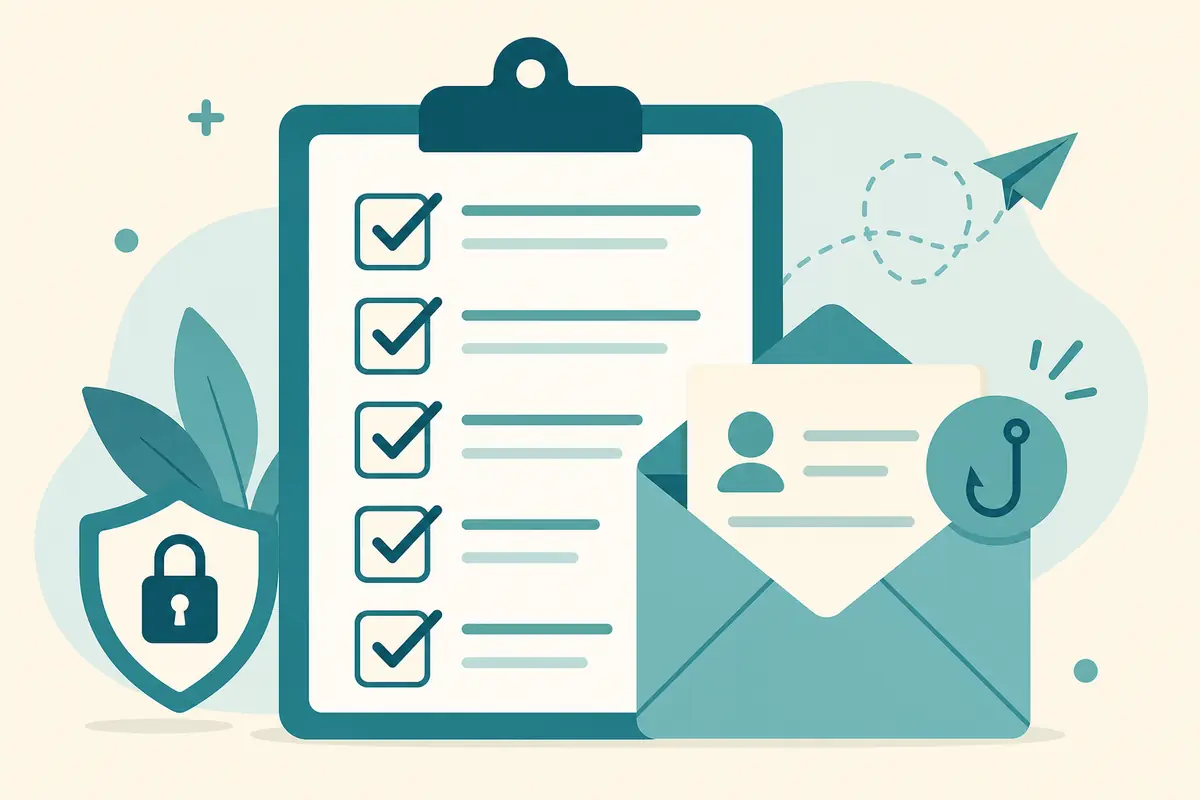
30-second email checklist
If an email feels even a little off, run this quick check before you click anything:
- Was I expecting this"
- Does the sender address fully match the real organization"
- Is the link domain clean and exact"
- Are they asking for a password, OTP, or payment"
- Can I complete this task by visiting the official site myself"
- Would this still make sense if I ignored it for an hour"
If any answer feels wrong, stop.
How to inspect the link safely
Before you open anything:
- Desktop: hover the link and read the real URL in the corner/status bar
- Mobile: long-press the link and preview the destination
- Check for lookalike domains (
paypa1.com,micros0ft-login.com) - Prefer typing the site yourself or using a bookmark
- Watch for long redirect chains that hide the final destination behind a short link
What a lookalike domain often looks like
Attackers rely on quick glances:
- Swapped characters:
rnform,0foro,1forl - Extra hyphens or words:
secure-login-bank-update.com - Wrong top-level ending for that brand
- Subdomains that sound official but sit under a stranger's domain, like
paypal.security-check.example.net
If the domain is not exactly the one you already trust, do not log in there.
Attachments that deserve extra caution
Be careful with:
.html"invoices"- Compressed files you did not expect
- Macros in Office documents from unknown senders
- "Voice message" or "shared folder" prompts from odd addresses
- Password-protected zips where the password arrives in the same email thread (a common bypass trick)
If you were not waiting for that file, verify through another channel first. Call the person using a known number, or ask in a separate chat you already use with them — not by replying to the suspicious message alone.
What phishing is trying to do
Most phishing has one goal: steal something valuable enough to sell, reuse, or cash out.
Common targets include:
- Passwords and one-time codes
- Session access to email or banking
- Card details or "verification" payments
- Malware installs from fake attachments
- Business email compromise paths into payroll or vendor payments
If the email pushes fear plus speed, treat it as suspicious until proven safe. Legitimate companies can send urgent messages, but they almost never need you to authenticate through a random button in an unexpected email.
Why phishing still works in 2026
People are busy. Phones make small screens and fat-finger taps easy. Attackers also steal public info — company names, job titles, package tracking patterns — and stitch it into messages that feel "close enough." Modern phishing kits can clone a login page in minutes. The visual design is often convincing. The domain, the sender address, and the request itself are where the lie usually shows.
How phishing emails actually work
Understanding the pipeline makes the red flags easier to remember.
- Delivery — The message arrives by email, sometimes also mirrored in SMS or chat.
- Hook — A threat, prize, invoice, shared file, or security alert creates urgency.
- Click — You open a lookalike site or a malicious attachment.
- Capture — You type a password, OTP, card number, or download malware.
- Abuse — Attackers drain accounts, reset other logins, or sell access.
Many campaigns are automated. Others are highly targeted "spear phishing," where the attacker researched you or your workplace first. Either way, the defense is similar: slow down, verify outside the message, and never authenticate from an untrusted link.
Fake login pages vs. malware emails
Not every phishing email looks the same.
Credential phishing wants you on a fake website that copies your bank, Microsoft, Google, Apple, payroll, or shipping portal. The page may show a padlock (HTTPS). Encryption does not equal trust.
Malware phishing wants you to open an attachment or install a "viewer," "invoice tool," or "security update." Once malware runs, attackers may steal saved passwords, session cookies, or files without needing a perfect fake login form.
Both styles rely on the same social trick: make you act before you verify.
Red flags in the message itself
Look at the writing and pressure, not only the logo.
- Urgent threats — "account locked," "legal action," "final notice"
- Unexpected prizes — refunds, crypto, gift cards you never requested
- Odd greetings — "Dear Customer" when your bank usually uses your name
- Grammar that feels off — not always present, but still common
- Requests for secrets — passwords, OTPs, full card numbers by email
- Mismatched context — a "shared Google Doc" from someone who never shares docs with you
- Odd timing — payroll locks at 9 p.m., bank "final notices" on weekends, delivery failures for packages you did not order
Sender address tricks to notice
Open the full sender details, not just the display name.
- Display name:
PayPal Supportwhile the real address is random - Lookalike domains:
[email protected],[email protected] - Extra words:
amazon-security-alert.cominstead of the real brand domain - Free mail for "corporate" issues: a bank "fraud team" writing from Gmail or Outlook.com
If you are unsure, ignore the email and use a bookmark or the official app.
Step-by-step: what to do with a suspicious email
Use this sequence every time something feels off.
- Do not click yet. Read the subject and preview without opening attachments.
- Check the full sender address. Expand details on mobile if needed.
- Preview any link by hover or long-press.
- Open a fresh browser tab and type the official domain, or use your bookmark/app.
- Compare reality. Is there really a locked payroll account, unpaid invoice, or failed delivery"
- Report and delete if it is fake. Use your email provider's report phishing option when available.
- Tell teammates if it targeted your workplace, so others do not fall for the same lure.
This routine becomes automatic after a few repetitions. Speed is the attacker's friend; a short ritual is yours.
Common mistakes that make phishing succeed
Even careful people get caught by habits like these:
- Trusting logos and email templates more than domains
- Clicking because a colleague's name appears in the "From" field without checking the actual address
- Entering an OTP "just to see what happens" on a page reached from email
- Disabling browser warnings to "get the task done"
- Forwarding suspicious attachments to coworkers "to check," which can spread malware
- Using the same password everywhere, so one phished login unlocks several accounts
- Assuming HTTPS or a professional design means the page is legitimate
Phishing defense is less about being a technical expert and more about refusing to authenticate under pressure from an unsolicited message.
What to do if you already opened a phishing email
If you opened a link but did not enter anything, close the page and stay alert. If you entered credentials or an OTP, act immediately.
- Do not enter credentials on the suspicious page if you have not yet
- Change the password from a trusted device using the official site or app
- Turn on or confirm 2FA
- Check recent login activity and sign out unknown sessions
- Watch bank and email alerts for a few days
- If you typed a password you reuse elsewhere, change it on those accounts too
- Scan your device if you opened an attachment or installed something
If money moved, contact your bank immediately and keep screenshots of the email, URL, and any transactions. For work accounts, notify IT or security right away — early reporting often reduces damage.
If the phishing used your company email
Workplace phishing can lead to invoice fraud, payroll diversion, or mailbox rules that quietly forward messages to attackers. After securing your password and sessions, ask IT to check for:
- New mailbox forwarding rules
- Unknown app passwords or OAuth app access
- Sent-mail copies you did not write
- Colleague reports of strange messages from your address
Longer FAQ
Can antivirus catch every phishing email?
No. Many phishing pages are brand new and have no malware file for scanners to recognize. Filters help a lot, but your judgment still matters for messages that land in the inbox.
Are HTTPS sites always safe?
No. Fake sites can also use HTTPS. The lock icon means the connection is encrypted between you and that server. It does not prove the server belongs to your bank or employer.
Should I reply "STOP" to scam emails?
Usually no. Ignore, block, and report. Replying can confirm your address is active and invite more messages.
What if the email looks perfect and uses my real name?
Targeted phishing exists. A polished message is not proof of safety. Verify through a bookmark, official app, or known phone number before you log in or send money.
Is it safe to click "unsubscribe" on a suspicious email?
If you never signed up for that list, do not use the email's unsubscribe link. It can confirm your address. Mark as spam/phishing instead.
Can phishing happen inside shared Google Docs or "voicemail" notifications?
Yes. Attackers fake the notification style. Open the real Drive, Docs, or phone voicemail app yourself rather than trusting the email button.
Does reporting phishing actually help?
Yes. Reports train filters and help providers take down campaigns faster. In a workplace, reporting also protects colleagues who may receive the same lure minutes later.
Trusted sources
- CISA: phishing guidance
- Report fraud to the FTC
- FTC: how to recognize phishing
- Google: report phishing
Key takeaways
- Phishing succeeds when urgency overrides verification.
- Logos, HTTPS, and polished design are not proof of identity.
- Preview links, read full sender addresses, and log in only from bookmarks or official apps.
- Never send passwords or OTPs by email reply.
- If you already interacted, reset credentials, review sessions, enable 2FA, and report quickly.
Was this guide helpful?
Tap like or dislike — one vote per visitor.
Comments
Share a tip or question. Keep it practical — no spam, links farm, or personal data dumps.
- Loading comments…