Account alerts
Is This Website Safe? (2026) Checklist Before You Login
How to tell if a website is safe before login: HTTPS myths, fake domains, browser warnings, and a 10-second checklist — plus what to do if you already typed a password.
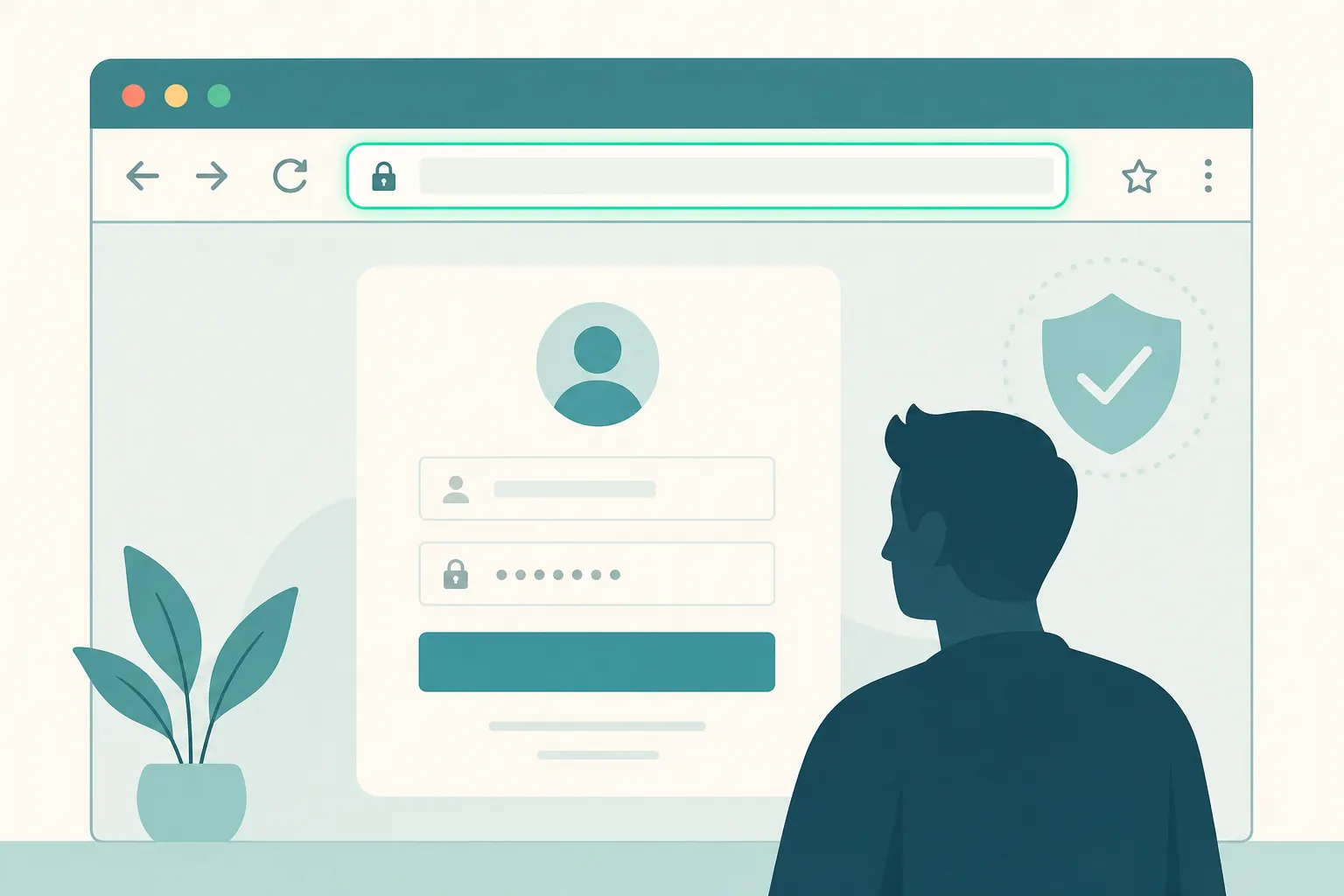
Short answer: How to tell if a website is safe before you login: read the full domain in the address bar, ignore logo cosplay, remember HTTPS/padlock ≠ real brand, and only enter passwords on sites you typed or bookmarked yourself. If a text or email sent you there, treat it as phishing until proven otherwise.
Before you enter a password, spend ten seconds checking the site. Most account takeovers from phishing start with a page that only looks official — same colors, same logo, same layout — while the domain quietly belongs to somebody else. Related: how to spot phishing emails.
This guide gives you a practical pre-login checklist, explains what HTTPS does and does not mean, and covers what to do if you already typed credentials on a fake page.
HTTPS is not enough
The padlock means the connection is encrypted. It does not prove the site is the real brand.
A fake shop can also have HTTPS. Encryption protects the trip between your browser and whatever server you reached. If that server is hostile, encryption simply means your stolen password travels privately to the thief.
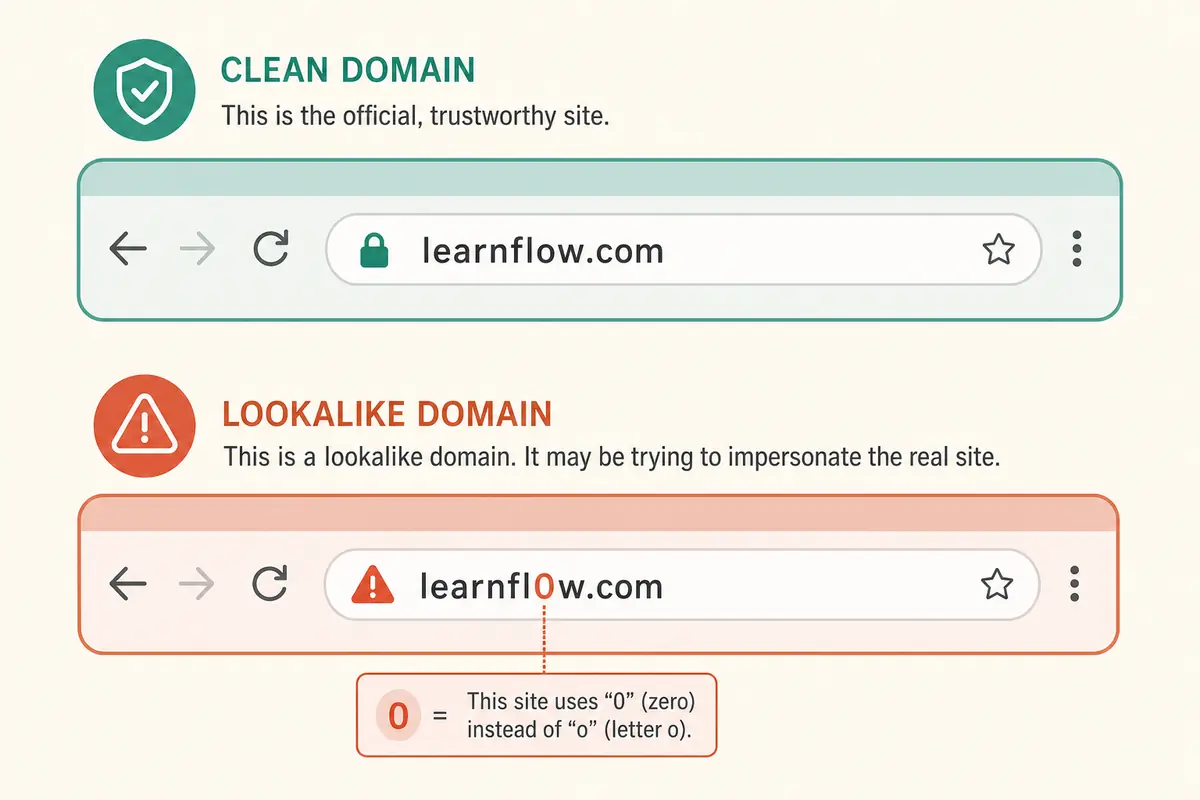
What the padlock actually tells you
HTTPS helps against some network eavesdropping on open Wi-Fi. It does not answer:
- Is this the company I think it is"
- Did I arrive here from a trustworthy path"
- Is this page safe to give a password, card, or ID"
Judge identity by domain and navigation path first. Treat the padlock as a baseline, not a green light.
How fake login websites work
Attackers clone popular login flows and host them on lookalike domains. Traffic arrives from:
- Search ads and poisoned results
- Phishing emails and SMS
- Social media DMs and comments
- Compromised websites with injected links
- QR codes on posters, parking signs, or flyers
Once you submit a password, the kit may show an error and redirect you to the real site so you assume you mistyped. Meanwhile the attacker tries your credentials elsewhere, often immediately, and may also harvest the OTP you enter next.
Why clones look so convincing
Modern phishing kits copy CSS, logos, and even multi-step flows. Mobile screens hide long URLs. People trust visual familiarity more than address bars. That is the gap this checklist closes.
Some kits even simulate loading spinners, “verify it is you” screens, and CAPTCHA challenges to feel authentic. None of that proves identity. A scammer can put a CAPTCHA on a fake domain as easily as a real company can put one on a legitimate domain.
Mobile-specific traps
On phones, the risk is higher because:
- Address bars collapse or hide parts of the URL
- Fat-finger taps hit the wrong search result or ad
- In-app browsers inside social apps can make the real domain harder to inspect
- Autofill may offer passwords if you previously saved a similar-looking site
When in doubt on mobile, leave the in-app browser, open Safari/Chrome yourself, and use a bookmark or the official app.
Checks that actually help
- Read the full domain — not only the logo
- Watch for lookalikes (
rnvsm, extra dashes, odd country endings) - Prefer bookmarks for banking, email, and work tools
- Be suspicious of sites you reached from urgent emails or DMs
- Take browser “Dangerous/Deceptive site” warnings seriously
- Be careful with shortened links that hide the final destination
- Confirm you are not on a subdomain of an unrelated site
How to read a domain without overthinking it
Focus on the registered domain, not the marketing fluff in front of it.
Examples of risky patterns:
login-bankname.randomsite.com— you are onrandomsite.combankname.secure-update.net— you are onsecure-update.netbanknane.com— misspellingbank-name-login-check.com— extra words and hyphens
If you cannot confidently say “this exact domain is the one I always use,” do not log in. Navigate fresh.
A 15-second address-bar drill
Before any password field:
- Tap or click the address bar so the full URL expands
- Find the core domain (usually the part just before the first path slash, after any
www.) - Ask: “Is this the exact domain I already trust for this company?”
- If no, close the tab and start from a bookmark
You do not need to become a DNS expert. You need a consistent pause.
Signals of a risky login page
- Domain does not match the company’s real website
- Poor certificate warnings or broken pages with aggressive login forms
- Spelling mistakes around brand names
- Asks for unusual data on first login (seed phrases, full card + OTP + ID photo)
- Pressure timers (“session expires in 00:59”)
- Unexpected pop-ups requesting remote access software
- Downloads that start automatically after a “login required” warning
Search and ads deserve extra caution
Searching “[brand] login” is a common way people land on lookalikes. Ads can appear above organic results and mimic the brand name. Safer habit: type the domain you already know, use a bookmark, or open the official mobile app from the real App Store or Play Store.
Safer login routine
Build a repeatable sequence for important accounts.
- Open the site from a bookmark or official app
- Confirm domain spelling
- Enter credentials only then
- Keep 2FA enabled
- If anything feels off, stop and use another device/network later
- Avoid entering passwords while multitasking on urgent messages
- Review account sessions periodically on high-value services
Step-by-step when you arrive from an email or text
- Do not tap the embedded login button as your first move
- Identify which company the message claims to represent
- Open a new tab or your phone’s app drawer
- Use your bookmark or the official app
- Check whether the claimed issue exists
- Only then take action inside the trusted destination
This routine feels slower once. After a week it becomes automatic.
Common mistakes when judging website safety
- Equating HTTPS with trustworthiness
- Checking only the beginning of a long URL on mobile
- Trusting favicons and logos over domains
- Ignoring browser warnings because a task feels urgent
- Reusing passwords so one fake page endangers many accounts
- Installing “security apps” recommended by the suspicious page itself
- Scanning random QR codes into login flows without reading the destination
Browser warnings are imperfect, but dismissing them to finish a task is how many people hand over credentials.
Another frequent mistake is “checking” a suspicious page by entering a wrong password first “just to see.” That still confirms the page is collecting credentials and may reveal that your email or username is valid. If the page is untrusted, leave without testing anything.
What to do if you already entered a password
Assume the password is burned for that account and anywhere you reused it.
- Go to the real site via bookmark or typed domain
- Change the password immediately
- Enable or confirm 2FA
- Sign out unknown sessions and devices
- Revoke third-party app access you do not recognize
- Check email for password-reset confirmations you did not request
- Monitor banking if the fake page also asked for card data or OTPs
- Run a malware check if the site pushed a download
If you entered an OTP as well, treat the incident as a possible completed takeover and move faster on session revocation.
If you entered a credit card on a fake checkout
Contact your bank or card issuer, report suspected fraud, watch transactions, and consider a replacement card. Keep screenshots of the URL and page if you still have them. Do not use contact details from the fake site.
Quick answers
FAQ
8 questions
Often yes for major services, if you installed them from the real App Store/Play Store. Side loaded APKs from chats or websites are a different risk entirely.
Trusted sources
Key takeaways
- Logos and padlocks do not prove a website’s identity.
- Read the real domain and prefer bookmarks or official apps for important logins.
- Be extra careful with search ads, urgent messages, and QR codes.
- Unusual data requests and countdown timers are strong warning signs.
- If you already submitted credentials, reset passwords, secure sessions, and enable 2FA immediately.
Was this guide helpful?
Tap like or dislike — one vote per visitor.
Comments
Share a tip or question. Keep it practical — no spam, links farm, or personal data dumps.
- Loading comments…