Account alerts
Tech Support Scam (2026): Fake Microsoft Virus Pop-up — Don't Call
Tech support scam or fake Microsoft virus pop-up? Don't call the number on screen. How to close remote-access scare pages and spot Amazon/Apple clones safely.
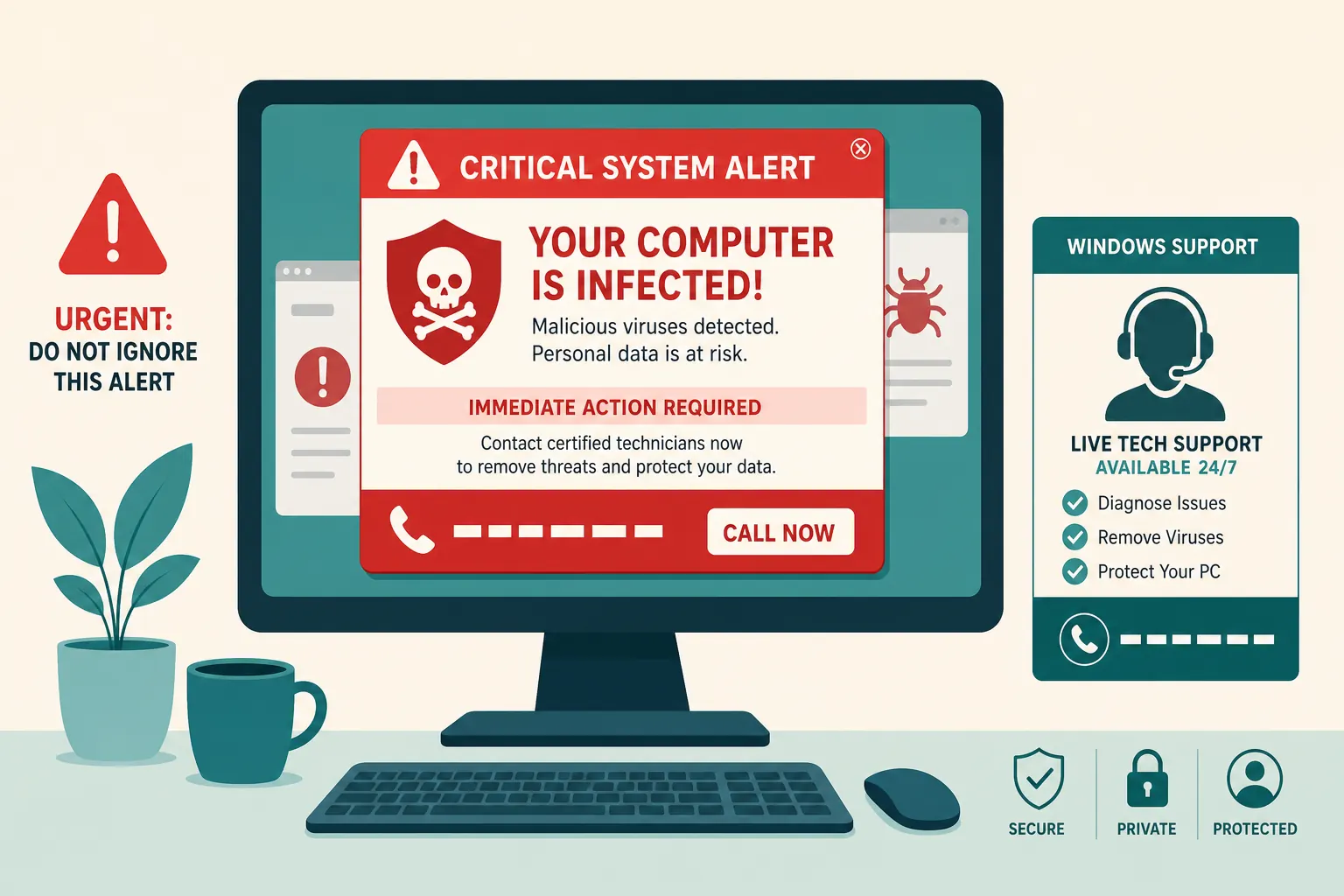
Short answer: A full-screen “Your PC is infected — call Microsoft” page is a tech support scam (fake Microsoft / virus pop-up), not Windows. Do not call the number on the screen. Do not allow remote access (AnyDesk, TeamViewer, “quick assist” from strangers). Close the browser with Task Manager / Force Quit, then scan with tools you trust. Real Microsoft, Amazon, Apple, or your ISP will not cold-call from a scare pop-up.
Fake tech support scams try to panic you into giving remote control of your computer or paying for “removal” of a fake infection. They name-drop big brands to sound official. The brand is borrowed. The urgency is manufactured.
If a scare pop-up is on your screen right now
Do these first before you try to understand the scam:
- Do not call the number on the screen.
- Do not click the "support," "fix," or "security" buttons.
- Mute the volume if the page is blasting alarm sounds.
- Disconnect from the internet if you feel unsure about what is already running.
- Close the browser with Task Manager / Force Quit instead of using the page controls.
- Restart the computer once the browser is gone.
- Only use support links you type yourself or open from a bookmark you already trust.
What to do next, in order
- If the browser reopens the same page, start it on a blank page or clear the bad tab before restoring sessions.
- If you already called, hang up and stop the conversation.
- If Wi-Fi or Ethernet is on and someone is trying to guide you remotely, disconnect first and think second.
- If you entered passwords, payment details, or one-time codes, change those from a clean device after the scare is gone.
- If you installed anything they suggested, remove it and check startup items.
- Tell household members what happened so nobody calls the number later "just in case."
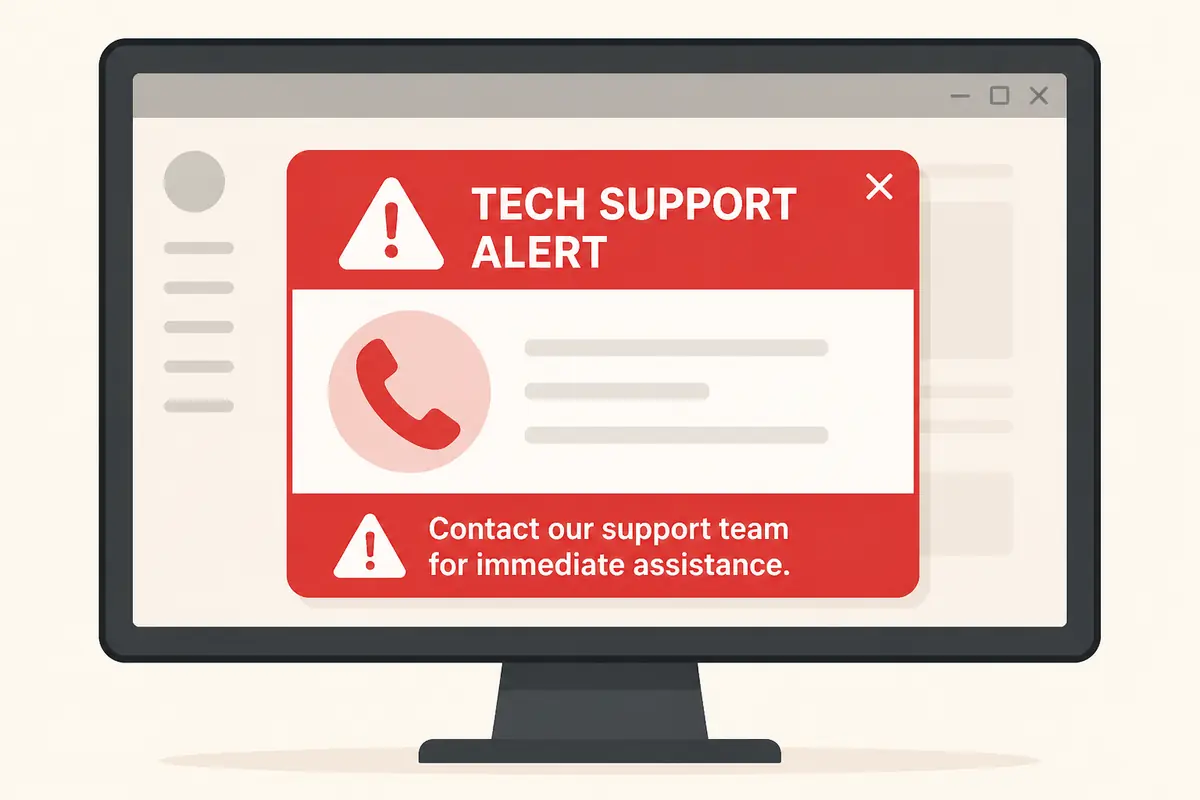
On Windows, Task Manager can end a stuck browser. On Mac, Force Quit does similar work. A web page can look dramatic without being the operating system itself, so the goal is to break the page's control over your attention before you worry about the computer.
How fake tech support scams work
The scare page
A malicious or deceptive page uses full-screen tricks, fake system fonts, and endless alerts. It may claim your IP was logged, your licenses are revoked, or your bank data is already stolen. None of that is a trustworthy diagnosis from a random webpage. Legitimate OS security tools do not recruit you through a browser ransom note with a toll-free number.
The phone script
Once you call, the person on the line often asks you to open a remote-support tool so they can "see the infection." They may open built-in utilities and mislabel normal processes as viruses. Event Viewer logs, for example, can look alarming to anyone who has never opened them — and scammers use that confusion on purpose.
The payment pressure
After the fake demo, they demand payment for cleanup, warranties, refunds, or "protection plans." Gift cards, crypto, and wire transfers are common because they are hard to reverse. Some scams also walk you through withdrawing cash or transferring money to "safe accounts."
The long game
Remote access is not only about one payment. It can lead to stolen passwords, installed malware, changed settings, or later fraud. Even if you pay once, they may return with "renewals" or claim new problems.
What scammers want
- Remote access tools installed on your PC
- Payment in gift cards, crypto, or wire transfers
- Login credentials entered while they "help"
- Long-term access for later fraud
- Personal data harvested from files, browsers, or email while they are connected
The brand names are props. Microsoft, Amazon, Apple, and Google are the costumes scammers put on the same old pressure script.
Common mistakes that keep the scam alive
Calling the number on the screen
The number is part of the trap. Even if you only "ask a question," you have entered their scripted environment.
Letting them stay on the line while you "just check?
Scammers are trained to keep talking so you never step away and verify independently. Silence and disconnection are your friends.
Installing remote tools to prove you are innocent
You do not need to prove anything to a pop-up. Remote access under panic is the win condition for them.
Paying a small fee to make the scare stop
Payment confirms you are reachable and willing. It rarely ends the relationship on your terms.
Searching "Microsoft support number" and clicking the first ad
Malicious or misleading ads can sit above real results. Navigate from official sites you already trust, or type known official domains carefully.
Cold calls, search ads, and brand-name angles
Cold calls
Unsolicited calls about viruses, warranties, or unpaid cloud storage deserve skepticism. Ask which account they mean, then hang up and check through official apps or bookmarks. Real companies generally do not open with terror and remote desktop.
Search ads for support numbers
If you need help, start at the official site or app, sign in, and use contact options there. Do not outsource trust to whoever bought the top ad slot for "support phone number."
Fake Amazon / package / billing angles
Some scripts claim your account ordered laptops you did not buy, or that a subscription will bill thousands unless you call. That urgency is designed to skip verification. Check the real account yourself.
Step-by-step: shutting it down safely
- Stop the panic loop by muting the sound and refusing the on-page buttons.
- Cut easy remote contact by hanging up and disconnecting if needed.
- Kill the browser, then reboot so the fake page cannot keep talking to you.
- Scan with tools you already trust after the machine is calm again.
- Review what you typed or installed and change credentials from a device you believe is clean.
If you are unsure what changed, a professional cleanup may be better than guessing. The key is to remove the scammer's control before you start chasing every alarm they created.
If you already gave remote access
- Disconnect internet immediately
- Uninstall remote-access software they added
- Change passwords from a different clean device
- Check bank accounts and enable alerts
- Consider a professional cleanup if you are unsure what changed
- Revoke sessions on email and major accounts
- Watch for follow-up calls pretending to be "refund departments"
- Document dates, phone numbers, payment methods, and chat IDs for reports
Refund follow-ups are a second scam genre. Someone may claim they can reverse the first payment if you buy more gift cards or grant access again. Official institutions do not run refund ops that way.
FAQ
Can a web page see my files without remote access?
Ordinary web pages are limited, but scare pages can still trick you into installing tools. Do not follow their instructions. The danger is usually what you install or type, not a webpage casually reading your whole disk by default.
Are all support calls fake?
Unsolicited scary calls tied to pop-ups are a classic scam pattern. Prefer official channels you initiate. Legitimate support you requested can still ask verification questions — but gift cards and surprise remote access remain major red flags.
Why does the pop-up look like Windows or macOS?
Because borrowed visual language creates authority. Look at how the alert arrived. A browser tab is not your operating system's security center.
What remote tools do scammers use?
They rotate through common remote-support and remote-access products. The brand of the tool matters less than who told you to install it and why. If the request came from a scare pop-up or cold call, do not install it.
Should I factory reset immediately?
Not always. Many people recover by disconnecting, removing remote tools, scanning, and rotating passwords. If you cannot tell what changed, or if financial accounts were exposed, a professional cleanup or reset may be reasonable.
What if I already paid with gift cards?
Contact the gift-card issuer's fraud reporting process quickly, tell your bank if a card or transfer was involved, and stop all contact with the scammer. Keep residual value reporting realistic — recovery is not guaranteed — and ignore anyone selling "guaranteed recovery."
Can antivirus alone stop these scams?
Security software helps with malware. It cannot stop you from calling a number and granting remote control. Awareness is part of the defense.
Trusted sources
- FTC: tech support scams
- Report fraud to the FTC
- Microsoft Safety & Security Center
- CISA: phishing guidance
Key takeaways
Fake tech support scams convert fear into phone calls, remote access, and hard-to-reverse payments. Browser scare pages and brand-name scripts are costumes, not diagnostics. When a pop-up appears, do not call the number: force-close the browser, restart, and verify later through official channels you choose yourself. If you already granted access or paid, disconnect, remove remote tools, change passwords from a clean device, monitor financial accounts, and ignore refund sequel scams. Real help does not need gift cards and panic to begin.
Was this guide helpful?
Tap like or dislike — one vote per visitor.
Comments
Share a tip or question. Keep it practical — no spam, links farm, or personal data dumps.
- Loading comments…